Troubleshooting
My device is not listed
- DirectLink for TelemFFB must be enabled (System Settings, System tab, under Integrations), and the status line below it must report an installed DirectLink.
- DirectLink lists devices that expose force feedback through DirectInput. A device without FFB, or one whose FFB arrives through a vendor driver rather than DirectInput, will not appear.
- Some devices must be switched into DirectInput mode in the vendor's own software first. For MOZA bases, see MOZA AB6 / AB9.
- Close other software that may hold the device exclusively.
TelemFFB refuses to enable DirectInput support
The refusal names its cause:
- DirectLink could not be loaded - DirectLink is missing or damaged. Reinstall it.
- The installed DirectLink is too old - this TelemFFB needs a newer build; both versions are named. Install a current DirectLink.
DirectLink says it must be installed with its installer
A released DirectLink build runs only from the location its installer recorded when it was installed. A copy of the file placed anywhere else - the TelemFFB folder included - will refuse to drive devices. Run the DirectLink installer; if it is already installed, running it again repairs the recorded location.
The same applies to any other status line that says devices will be refused: running the installer again restores whatever the install is missing.
My device goes limp when I start TelemFFB
This is by design. Most DirectInput FFB devices apply their own centering spring when no application is in charge. DirectLink disables it when TelemFFB starts and restores it on exit. TelemFFB's rendered forces would otherwise fight it.
The device fights TelemFFB's forces
The stick feels heavy and over-centered, and the forces do not change with speed. This is the flip side of the same handover: if the device's built-in centering spring never turned off, every rendered force works against it. The log says whether the handover succeeded; if it did not, check the device driver's own centering or spring setting.
Some devices also keep a spring setting of their own that the handover does not turn off. On a MOZA base, set Spring to 0 in MOZA Cockpit; see MOZA AB6 / AB9.
No forces in DCS, IL-2, or BMS
The game's forces reach a DirectLink device only through the DirectInput Tap. TelemFFB reports the usual causes on the error line of the effects area while you fly:
- The Tap is not installed or not capturing the device - set it up on the simulator's page in System Settings.
- The game was started before TelemFFB - the Tap engages only when TelemFFB is already running. Restart the game. Once the Tap is established, TelemFFB can be restarted freely; see Start TelemFFB before the simulator for the reason, and how to remove the requirement.
- DCS only: the wrapper is installed in FFB-Fix only mode, which captures nothing by design. TelemFFB's error still blames the start order here; the DCS panel is what gives it away, reading installed as: FFB-Fix only. Switch to the Tap with Configure Devices...
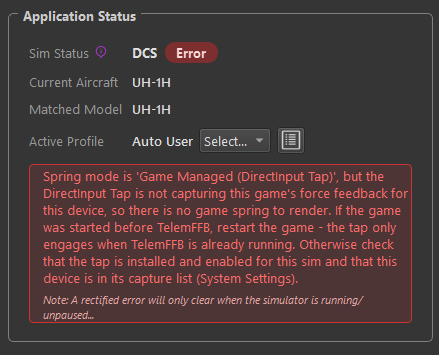
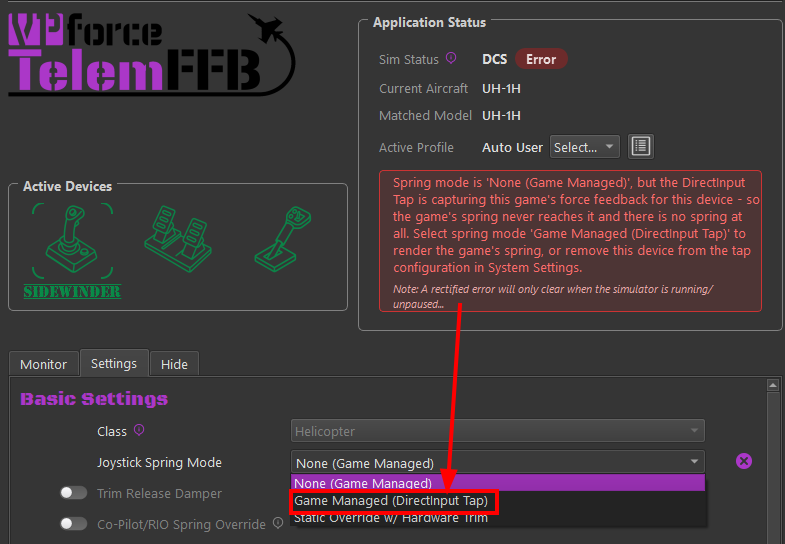
- The spring mode is None (Game Managed) while the Tap is capturing - the game's spring never reaches the device, so there is no spring at all. Select Game Managed (DirectInput Tap) to render it, or remove the device from the Tap's configuration.
There is no working arrangement without the Tap for these simulators: DirectInput force feedback is exclusive, so whichever program opens the device first - the game or TelemFFB - locks the other out entirely. The Tap removes that conflict, which is why it is required rather than optional for a DirectLink device.
The Tap panel cannot find my simulator
Usually a DCS install that was moved by hand, leaving no Eagle Dynamics registry entry, or one still pointing at the old location. Recent TelemFFB builds recover the path from dcs.log, and the DCS and BMS pages offer an install path field in their Tap section to set it directly.
Captured game effects feel wrong (DCS, IL-2, BMS)
Everything in this section applies to the game's own effects as captured by the DirectInput Tap - it does not apply to MSFS or X-Plane, where TelemFFB generates all forces itself and the spring modes carry their own controls.
- An effect feels doubled. A captured game effect and the equivalent TelemFFB telemetry effect may both be enabled - the game's gunfire rumble plus TelemFFB's gunfire effect, for example. Disable one of the pair.
- Forces push the wrong way. Some devices render an axis in the opposite direction to what the game expects. Use the Tap: Axis Corrections and Gain settings: swap the X/Y FFB axes, or invert either axis. The corrections are per aircraft, so a fix for one title never disturbs another.
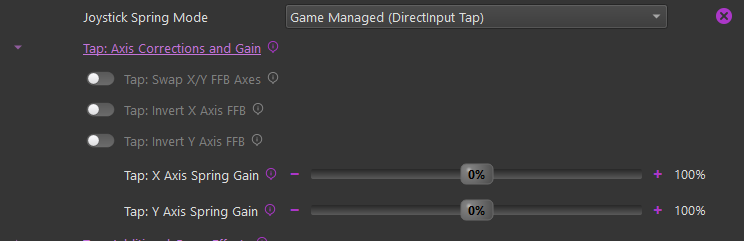
- Forces are too weak or too strong. Every captured effect has a gain slider, adjustable from 0% (the effect is disabled) to 200%: the game spring per axis (Tap: X Axis Spring Gain / Tap: Y Axis Spring Gain) and each other effect type - constant forces, periodic vibrations, damper, inertia, friction - in the Tap: Additional Game Effects group. 100% renders the force exactly as the game commanded. The slider handle shows the force being rendered right now; pinned at 100% means the gain is clipping at the device's maximum. Clipped force is flat force.
TelemFFB's own telemetry-driven effects, in every simulator, carry their own intensity settings per effect - see the Effects Reference.
Effects missing or behaving oddly
Restart TelemFFB with the simulator still running. It reconnects, and this clears a surprising number of issues in both DCS and MSFS. If effects are still missing in DCS, IL-2, or BMS, check that the game was started with TelemFFB already running. In DCS, also check that the wrapper was not installed in FFB-Fix only mode.
Forces cut in and out, and TelemFFB keeps reconnecting
The log shows the device faulting and reconnecting every few seconds, forces come and go, and the controls may lag. The usual cause is the USB connection: through a USB hub or an add-in USB card, the data the force feedback driver depends on can arrive damaged or not at all. Plug the device into a USB port on the motherboard, with no hub in between.
DirectLink's error messages point the same way: a device answer that arrived damaged, a device that did not answer in time, or a count of driver faults that keeps climbing.
Jittery controls in MSFS, or a trim calibration that will not complete
The axes TelemFFB drives are still bound in MSFS. Unbind them - see MSFS: unbind your axes.
Forces on the wrong axis, or pushing the wrong way (pedals, collective, trim wheel)
For a [DI] device in a non-joystick role, the FFB Axis selector beside the device selection decides which of the device's axes TelemFFB drives, and Invert reverses its direction - see The FFB Axis choice.
- The spring holds an axis that does not move - the wrong axis is selected. Pick the one your feet (or hand) actually move; the list only offers axes the device can render force on.
- The spring or trim pushes opposite to expectation - tick Invert. Forces and position invert together, so trim holds and autopilot following stay exact.
- Changes apply when settings are saved, simulator running or not.
This is the device-level control and applies to everything TelemFFB renders. The per-aircraft Tap: Axis Corrections settings above are separate: they correct the game's captured effects specifically, for titles that emit them with a different convention.
Where the logs are
TelemFFB's logs live in %LOCALAPPDATA%\VPForce-TelemFFB\log. DirectLink's activity is part of the TelemFFB log; the Tap writes per-game logs to the tap subfolder. Help → Create Support Bundle in TelemFFB collects everything.